
Order Status state workflow
By ---- - 2024-09-21 - 0 comments
this article include:
- order status summary
- Pay by "Paygate"
- Pay by "Bank Transfer"
- "Order History" at client web-page
- Cancel an Order
- Pay again
- "Order Benefit Report" at client web-page
1. order status summary:
| Status | |
| Processing Order Status | Paid, Processed, Processing,Shipped |
| Complete Order Status | Complete |
| when use "Bank Transfer" but doesn't upload payment-proof |
Unpaid |
| when use "Bank Transfer" and upload payment-proof |
Pending_payment |
| when pay fail or order is canceled | Canceled |
| when pay fail | Failed |
| not used status | Denied |
note:
1) at server side, can set delivery company and track-Number() only when status is "Processing Order Status" that is "Paid, Processed, Processing,Shipped",
2) when use "Bank Transfer", it should transfer in 24 hours. if not, this order maybe cancelled at server side
2. Pay by "Paygate"
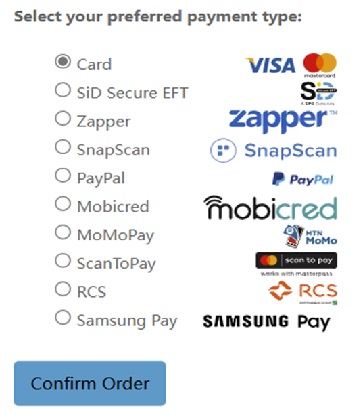
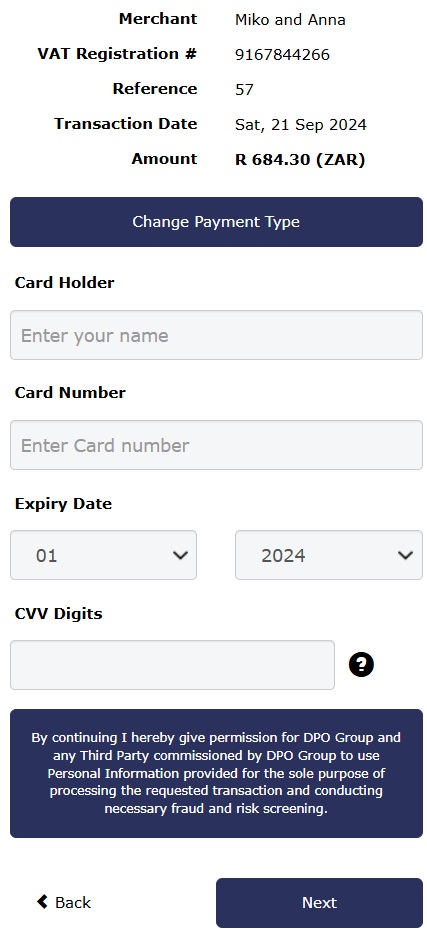
at client side, when select "paygate" payment, then click "Confirm order", will switch to paygate page,
- if pay success, the order will change to "Paid" status
- if for some reason , payment has exception, for example network is unavailable when switch to paygate, the order will change to "Unpaid" status
- when paygate pay fail, the order will change to “Failed” status
- when at paygate page, cancel this payment, the order will change to “Canceled” status
3. Pay by "Bank Transfer"
at client side, when select "Bank Transfer" payment, then click "Confirm order",
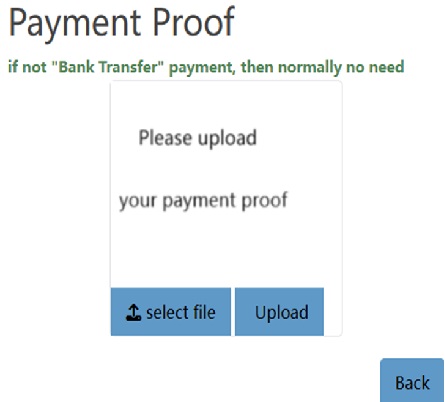
- if upload payment proofs, the order will change to "Pending payment" status, then we will confirm the payment at server side. when confirmed , the order will change to "Paid" status
- if not upload payment proofs, then click "Confirm order", the order will change to "Unpaid" status.
- if forgot to upload " payment proofs", you can click "My Account"----"Order History", then view related order, and in order detail page, click "Select file", then click "Upload", the order will change to "Pending payment" status
4. "Order History" at client web-page
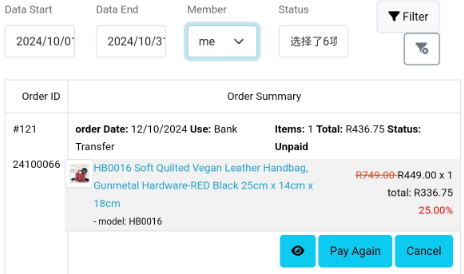
- at client order list, default will show orders which status is "Complete", "Failed", "Paid", "Pending_payment", "Shipped", and "Unpaid".
- if want to show "Cancel" status, please select it from "Status" dropdown-list, then click "Filter" button to see the result
- at this page, default only show current month's orders. you can select "Date Start" and "Data End" to define the time range, then click "Filter" button to see the result
- default only show your orders. but if you want to see your member's order, please select from "Member" dropdown-list, then click "Filter" button to see the result
- you can click "reset" button to reset "Filter" conditions
4. Cancel an Order
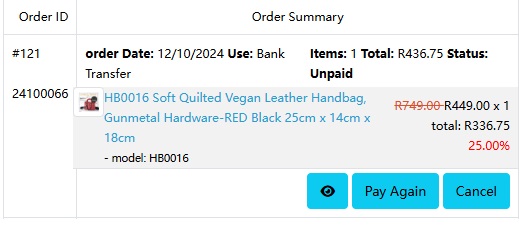
now only can cancel order which status is "Pending payment" or "Unpaid"
5. Pay again
if the order status is "Pending payment" or "Unpaid", and not in 24 hours after confirm order, you can "Pay again".
at this time, you can pay using "paygate" or "Bank Transfer".
6. Orders Benefit Report at client side
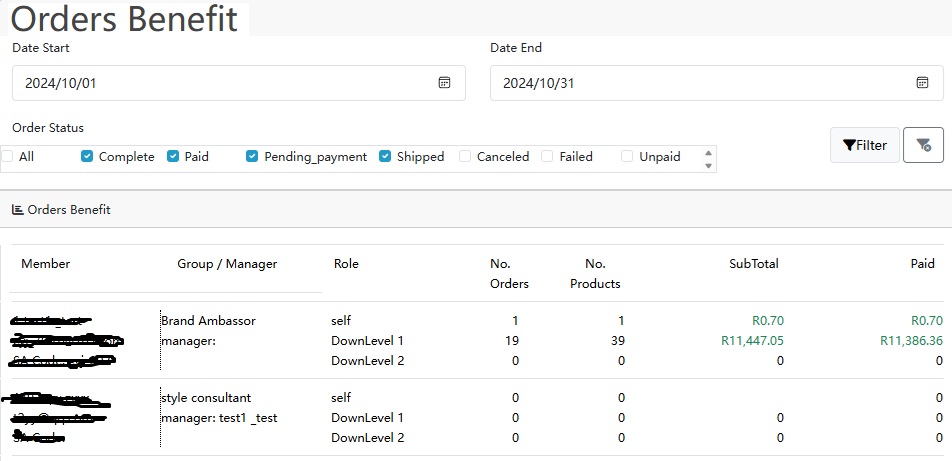
- default, we only stat orders which status is "Complete", "Paid", "Pending_payment", "Shipped"
- default only show current month's orders. you can select "Date Start" and "Data End" to define the time range, then click "Filter" button to see the result
Comments
Write a comment